

01 / 05
Level 1
All requested permissions are allowed. This is the most open level, intended for apps you choose to trust fully.

Punkt. MC03: Vault and Wild Web
You are now in control of your digital life: Two spaces, one swipe away
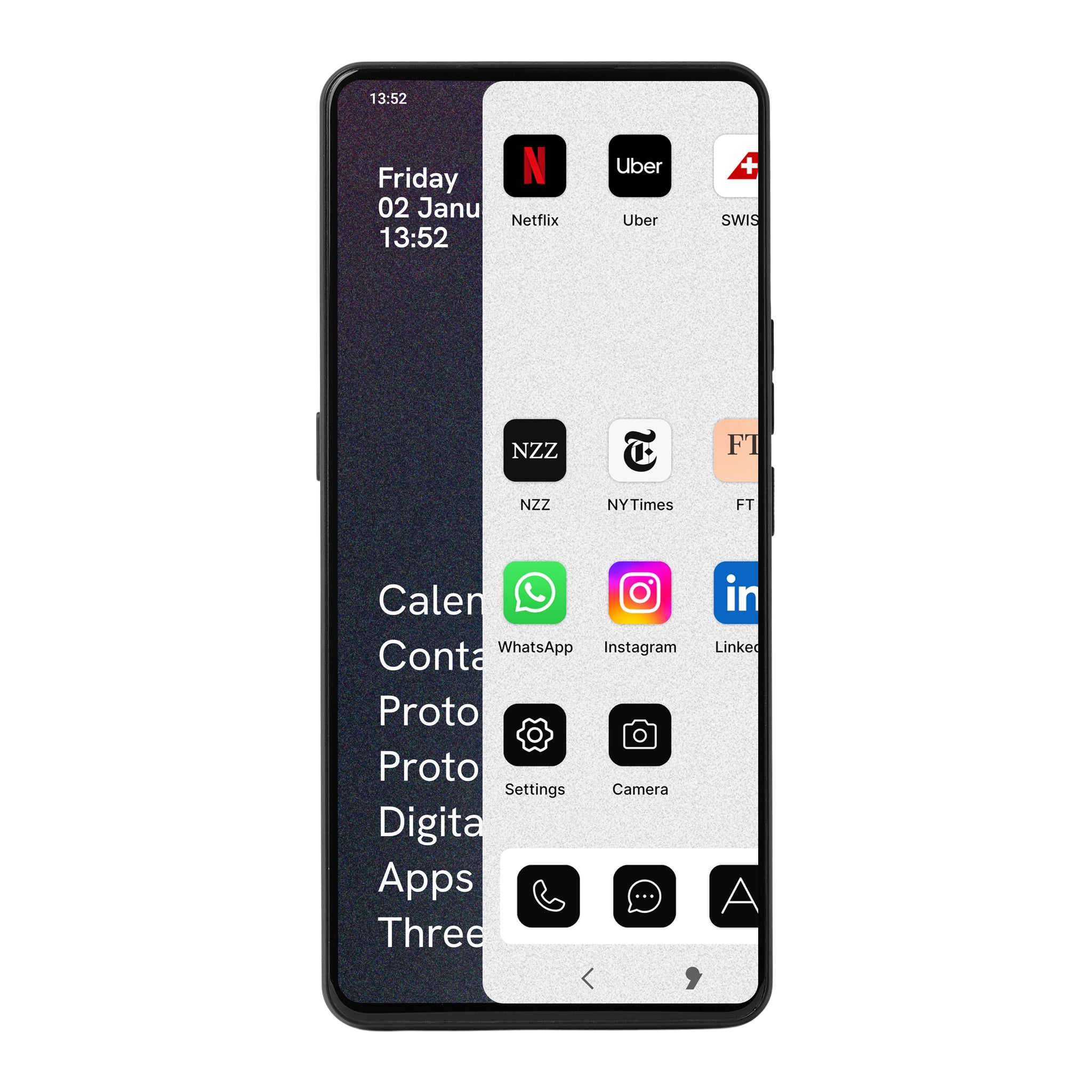
Most smartphones promise privacy. The Punkt. MC03 smartphone is built around it. Instead of relying on hidden settings or default permissions, the MC03 introduces a fundamentally different system architecture: Vault and Wild Web. Two clearly separated environments designed to give you real control over your digital life.
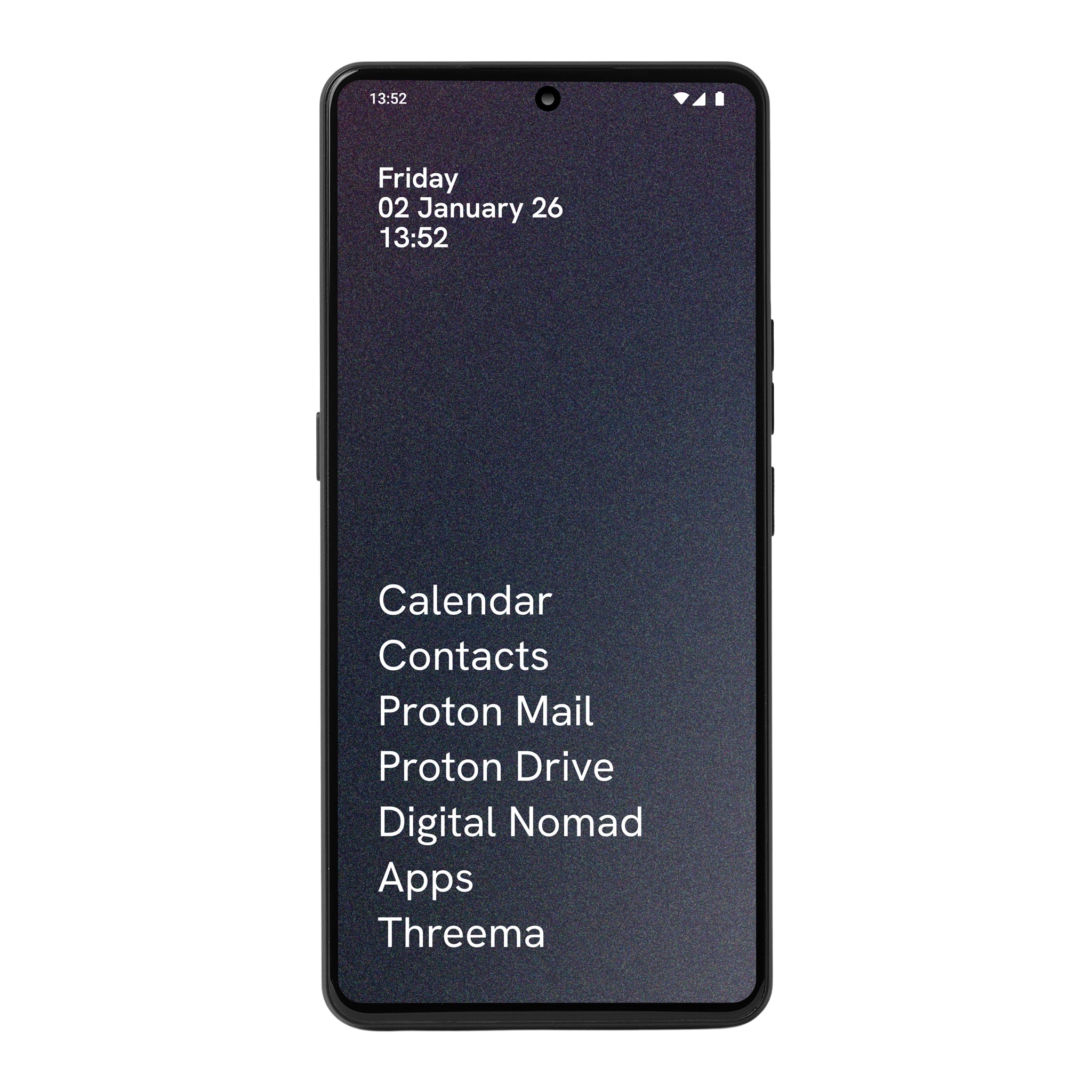
Vault is the secure environment of the Punkt. MC03 smartphone. It is designed for applications that require the highest level of trust, communication, identity, scheduling, and personal data.

Choose how much access each app is allowed. As the level increases, permissions become progressively more restrictive.
All requested permissions are allowed. This is the most open level, intended for apps you choose to trust fully.
Personal data, hardware peripherals, and network permissions are allowed. A full experience, with clear control.
Hardware peripherals and network permissions remain allowed, while access to personal data is denied. A more cautious balance.
Only network permissions are allowed. Personal data and hardware peripherals remain protected.
All requested permissions are denied. The strictest level, designed to minimise data exposure as much as possible.
All requested permissions are allowed. This is the most open level, intended for apps you choose to trust fully.

Personal data, hardware peripherals, and network permissions are allowed. A full experience, with clear control.

Hardware peripherals and network permissions remain allowed, while access to personal data is denied. A more cautious balance.

Only network permissions are allowed. Personal data and hardware peripherals remain protected.

All requested permissions are denied. The strictest level, designed to minimise data exposure as much as possible.

If Google Services were not enabled during initial setup, you can install them later from A Apps by following these steps.
If you did not enable Google Services during device setup, open the “A Apps” application and follow these steps.
Tap the Settings icon in the bottom-right corner.
In Settings, tap “Enable Google Services”.
Then tap “Install GMS Services”.
The Play Store and GMS services are downloaded and installed.
Once installation is complete, tap “Launch Play Store” or “Done” to return to Wild Web.
Tap “Get started” to open the Play Store and download your favorite apps.
If you did not enable Google Services during device setup, open the “A Apps” application and follow these steps.

Tap the Settings icon in the bottom-right corner.

In Settings, tap “Enable Google Services”.

Then tap “Install GMS Services”.

The Play Store and GMS services are downloaded and installed.

Once installation is complete, tap “Launch Play Store” or “Done” to return to Wild Web.

Tap “Get started” to open the Play Store and download your favorite apps.

Need help?
The basics
The Vault is a hardened, secure environment for your most sensitive data and trusted apps, while the Wild Web is an open space where you can run any Android app with total transparency.
No. The two environments are architecturally separated to ensure no data crossover occurs between your trusted tools and your everyday apps.
Vault
Vault is for applications requiring high trust, such as secure messaging, encrypted email, identity management, and personal scheduling.
No. Only apps that have been carefully vetted and approved by Punkt for privacy and security are allowed to run inside the Vault.
No. All applications in the Vault are reviewed to ensure they contain no advertising frameworks or hidden background trackers.
Wild Web
Yes. The Wild Web allows you to install and use any Android application just as you would on a conventional smartphone.
By default, every app starts in a "Privacy Bubble" and is fully locked. It is isolated from your sensors and your personal data until you choose to unlock it.
The Ledger uses a 5-level dial to control privacy. Level 5 is fully locked (all permissions denied), while Level 1 is fully open. You can turn the dial to find a middle ground—for example, allowing internet access but blocking the camera and microphone.